Introduction
This article is going to describe how to restrict some values typing in a text box input field, We have used Angular 6 to develop this application using
Visual Studio Code as the IDE, Let's see how to do it
Background
- If you love to start with .NET Core on a Linux server, check what are the basic things you have to do,
Install .NETCore in a Linux server
- Say Hello from .NET Core application in a Linux server,.NET Core with a Linux server: Hello World!
- If you are interested in open source platforms and want to try out .NET Core application development in Linux, try with these steps,.NETCore:
Create a web application with a Linux server
- If you want to know how to create an ASP.NET Core service application check this article,
ASP.NETCore: Create a Web API application
- If you want to show a loading panel on the screen using ASP.NET Core, go through this article,
ASP.NET Core : How to show a loading panel in a page
- If you like to use template generators for .NET Core this is the ideal article for you,
.NET Core: Create web application with Yeoman template generator
- When you are developing ASP.NET Core web applications, security is a crucial thing, follow this article to know more about it,
Secure your .NETCore web applications using IdentityServer 4
- Check how to show a confirmation dialog with jquery from this post,
ASP.NET Core : How to show a confirmation dialog with jquery
- If you want to try out advanced features in jquery dialog on top of .NET Core, this will be a great article for you,
ASP.NET Core : Advanced JQuery dialog actions
- If you are interested in user authentication & ASP.NET Identity follow this link,
ASP.NET Identity: Customize User Authentication
- You can send a simple smtp email by checking this article,
C#: Create a simple SMTP email with HTML body
- Check this article to know how to use a windows service to fire an email
How to fire an email using a windows service
- If you ever want to log error messages, warning or any information in your application, you have to select a logging framework, Go through this article and learn what are the available logging frameworks,
Log messages using NLog framework
- Check this article and learn how to use hashing and salting to protect your passwords, keys
C#: How to generate a unique key or password using salting + hashing
- If you are a LINQ query fan and want to know few basic tricks, this is the article for you
LINQ - list update tricks
- If you are interested to follow on ODATA queries, check this article
ODATA Reads with Parameters
- Go through
ODATA Reads to know about read queries with ODATA
- If you are interested to know about Azure storage, blobs check this article,Send smtp email with Azure blob storage attachments
- We are going to create a Function app and publish that in Azure, if you are curious to know more about Azure functions check this one,
Azure Function App: Create a trigger on Cosmos DB
- If you are interested in Microsoft Graph and want to know more about Outlook API, check this article,
NET Core: Building Function app with Microsoft Graph API and Azure Functions
- If you like to know about Microsoft Graph and how we can integrate our business solution with it, go through this article, .NET
Core: Process a Excel file with Microsoft Graph API & Azure Function
- Check this article and get to know how to work with Azure Cosmos DB - Document API,
Explore Azure Cosmos DB - document API
- Learn how to map your on premise database in to a cloud NOSQL based database,
Azure Cosmos DB: Designing your data structure
- You can see a how to load a partial view using ASP.NET MVC
ASP.NET Core MVC: How to load a partial view
Create Angular project
Let's create an angular project from
Visual Studio Code terminal window, Open
Visual Studio Code and navigate to the menu, click on
Terminal and then
New Terminal. You can type
ng new command to create a new angular project as follows,
ng new <projectname>

A new project is created and you can check file explorer to check created files, We are going to change
app.component.html and insert a form with some text inputs
Let's build the angular application with
build command,
ng build
Run the application and try to access it from
http://localhost:4200/
ng serve
You can see the application in the browser like this,
Let's change
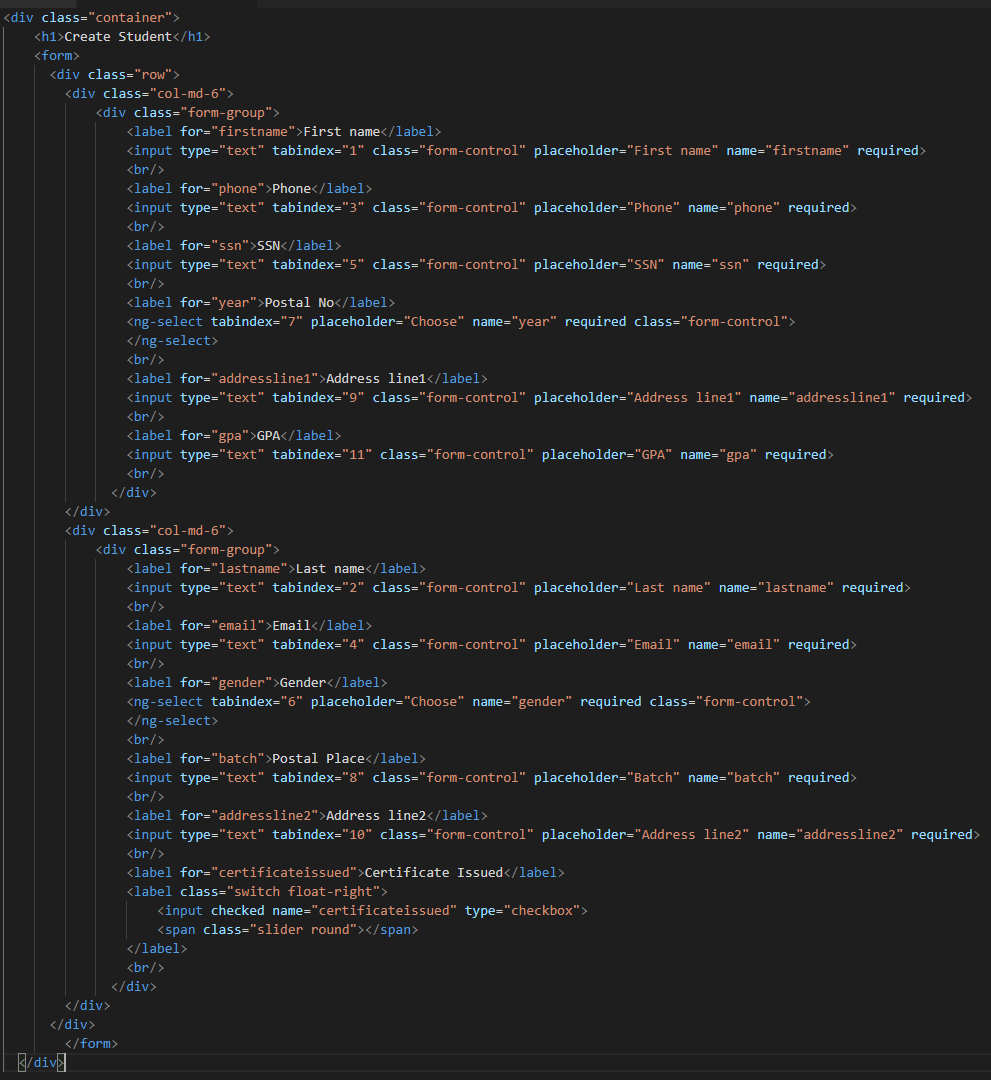
app.component.html page and add a student creation form like this,
We want to add a dropdown control to select
Gender value, let's add it
When you add
ng-select component, it shows following parser error, it says
ng-select is not a known element,
Let's install
ng-select package to this solution and check how it works
We have to import
ng-select module in
app.module file to use it in the solution
import { NgSelectModule } from '@ng-select/ng-select';
You can see student create form as below, its working fine since we added necessary libraries like
ng-select library
Let's inspect the code and check how it works, You can see how bootstrap classes and input controls have been used.
Postal No and
Gender values rendered as dropdown controls. We have to fetch some values from the server and bind into it. Let's try to start with that

We have partially completed implementing HTML view, let's try to fill initial data in to form such as
Gender and Postal code dropdown values,
We have to get data from the server when form loads, so let's implement
ngOnInit event in
app.component.ts, before that we have to get necessary libraries, let's implement
OnInit in the component as below
export class AppComponent implements OnInit {
It shows
cannot find name 'OnInit', we haven't added necessary libraries to the
.ts file,
Let's add
OnInit library from
angular/core and try to resolve the issue
import { Component, OnInit } from '@angular/core';
In the code, it extends from
OnInit interface but necessary methods are not added yet, let's add
ngOnInit method in
app.component.ts file
ngOnInit(){
}
Create a Service project
Let's start to create a service project using Visual Studio 2017, Go to available templates to create a ASP.NET Core Web application
When you click on OK button, you will be able to see available templates for ASP.NET Core 2.2, Let's select API project from available templates and go with the default screen
Your API project is created. After that will try to create a shared project to hold our common business logic. Let's add a new project and create a shared project in .NET framework.
You can see the solution with 2 projects, Web API project & Shared project as follows,
Let's create a class to hold common objects. MasterData class will hold data for Gender and PostalCode, we want these lists to populate dropdowns.
namespace input_restrictions_dal.Dto
{
public class MasterData
{
public IEnumerable Gender { get; set; }
public IEnumerable PostalCode { get; set; }
}
public class DropDownField
{
public int Id { get; set; }
public string Value { get; set; }
}
public class PostalCodefield
{
public int Id { get; set; }
public string Code { get; set; }
public string City { get; set; }
}
}
We want to hold gender values in a enum, you will see these values in Gender dropdown
namespace input_restrictions_dal.Enum
{
public enum Gender
{
Male = 1,
Female = 2
}
}
Open startup class to check what happens when the application starts. We have to enable necessary configurations to communicate with the client application.
We have to enable CORS to allow communication with any origin as below, Let's add necessary code lines into ConfigureServices and Configure method.