Monday, February 25, 2019

Azure Logic App : Save Email attachments in a blob storage

Azure Logic App : Save Email attachments in a blob storage


I have recorded a video series to give a brief introduction on Azure Logic Apps and then a step by step demo to start with your first Azure Logic App. In there it reads a email content and save the attachment in a blob storage


Saturday, February 2, 2019

TechNet Guru Awards December 2018 - ASP.NET

TechNet Guru Awards  December 2018 - ASP.NET - SILVER medal

I won the SILVER medal for my ASP.NET article on TechNet Guru competition


Source Code 
    TechNet Gallery : ng-input-restrictions
    GutHub : ng-input-restrictions


Saturday, December 1, 2018

Global Office 365 Developer Bootcamp - Colombo 2018

Graph API to read Outlook mail


Session Abstract : In a big organization there will be hundreds maybe thousands of mails a day. Within those you might find plenty of invoices sent. Lets use the power of Graph Api and read those invoices and at the end of the month, send a invoice summary from azure function app

Wednesday, November 21, 2018

How to render a Zingchart gauge component using Angular 6

Introduction


This article is going to describe how to add a Zingchart control into a page using Angular 6. Let's see that in simple steps.
We have used Visual Studio Code to develop the solution.


Background


Create Front end application


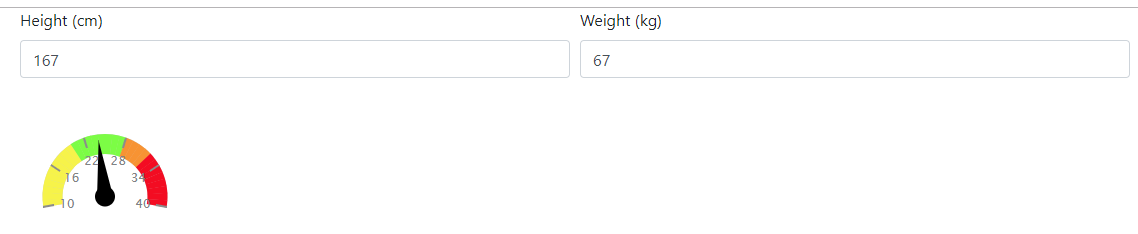
You can find the following screen shows how to render a ZingChart gauge using a Angular component.


Install zingchart libraries


First of all, Let's install zingchart packages from npm


npm i zingchart

Go to package.json file, you can see zingchart references has been added into dependencies section.


We have to add zingchart minified file to index.html file, let's add that into body section of the page using a script tag.


<!doctype html>
<html lang="en">
<head>
  <meta charset="utf-8">
  <title>BMI Calculator</title>
  <base href="/">

  <meta name="viewport" content="width=device-width, initial-scale=1">
  <link rel="icon" type="image/x-icon" href="favicon.ico">
</head>
<body>
  <app-root></app-root>
  <script src= "https://cdn.zingchart.com/zingchart.min.js"></script>
</body>
</html>


Explore angular form with input controls


Let's explore app.component file, it's going to load the form with weight and height textboxes and render zingchart gauge based on the values,


<div class="container">
    <form>
        <div class="form-row">
          <div class="form-group col-md-6">
            <label for="height">Height (cm)</label>
            <input type="number" class="form-control" id="height" name="height"
            placeholder="Height" [(ngModel)]="height" (change)="onValueChange()"/>
          </div>
          <div class="form-group col-md-6">
            <label for="weight">Weight (kg)</label>
            <input type="number" class="form-control" id="weight" name="weight"
            placeholder="Weight" [(ngModel)]="weight" (change)="onValueChange()"/>
          </div>
        </div>
        <div class="form-group">
          <app-chart></app-chart>
        </div>
      </form>
</div>


You can see app.component typescript file as below, it initially passes weight and height values as 0. When text box values changes, call onValueChange event and calculate the BMI value and render it in the zingchart control


import { Component, OnInit } from '@angular/core';
import { ChartComponent } from './shared/app.chart';

@Component({
  selector: 'app-root',
  templateUrl: './app.component.html',
  styleUrls: ['./app.component.css'],
  providers:[ChartComponent]
})

export class AppComponent implements OnInit{
  weight : number;
  height : number;
  bmi : string;

  constructor(private chartComponent : ChartComponent){}

  ngOnInit() {
    this.weight = 0;
    this.height = 0;
  }

  onValueChange() {
    var bmi = (this.weight / ((this.height / 100) * (this.height / 100)));
    if (isNaN(bmi) || bmi < 10)
      bmi = 10;
    else if (bmi > 40)
      bmi = 40;
    this.bmi = bmi.toFixed(2);
    this.chartComponent.ChangeChartValue(this.bmi);
  }
}

Go through app.module file, we have imported ChartComponent, it's going to handle the rendering process of zingchart component,


import { BrowserModule } from '@angular/platform-browser';
import { NgModule } from '@angular/core';
import {ChartComponent} from './shared/app.chart';
import { FormsModule } from '@angular/forms';
import { AppComponent } from './app.component';

@NgModule({
  declarations: [
    AppComponent,
    ChartComponent
  ],
  imports: [
    BrowserModule,
    FormsModule
  ],
  providers: [],
  bootstrap: [AppComponent]
})
export class AppModule { }


Explore Zingchart gauge component


We have created a seperate angular component to render zingchart gauge, Let's add a div tag and render it from there.


<div id="{{chart.id}}"></div> 

You can see app.chart component as below. It has created a chart object with Chart interface and passed configuration values to the chart. Note that initial value for gauge component is passed as 25.
When height and weight value changes, chartchange method is called and render the new value in the component.


import { Component, AfterViewInit } from '@angular/core';

declare var zingchart: any;

@Component({
    selector: 'app-chart',
    templateUrl: './app.chart.html',
    styleUrls: ['./app.chart.scss']
  })

export class ChartComponent implements AfterViewInit {

    chart: Chart = {
        id: "chart-1",
        data: {
          "type": "gauge",
          "scale-r": {
            "aperture": 200,
            "values": "10:40:1",
            "center": { "size": 10, "background-color": "#000", "border-color": "none" },
            "guide": { "visible": true },
            "item": { "visible": true },
            "tick": { "visible": true },
            "ring": {
              "size": 20,
              "rules": [
                { "rule": "%v >= 10 && %v <= 20", "background-color": "#f6f34a" },
                { "rule": "%v >= 20 && %v <= 28", "background-color": "#7cfd45" },
                { "rule": "%v >= 28 && %v <= 32", "background-color": "#f79333" },
                { "rule": "%v >= 32 && %v <= 40", "background-color": "#f30c22" },
              ]
            }
          },
          "plot": { "csize": "8%", "size": "90%", "background-color": "#000000" },
          "series": [ { "values": [ 25 ] } ]
        },
        height: 170,
        width: 170
      };

      ngAfterViewInit() {
        zingchart.render(this.chart);
      }
 
      ChangeChartValue (value){
        zingchart.exec('chart-1', 'setseriesvalues', {
          plotindex : 0,
          values : [Number(value)]
      });
   }
 
}

interface Chart {
    id:string;
    data : {};
    height : number;
    width : number;
   }

Finally, you can see the solution structure from the below picture, we have created a shared component to render chart control and used it in the app.component file.


Download

TechNet Gallery


You can download the sample code from TechNet gallery, angular-zingchart-gauge

GitHub


You can clone therepo from GitHub, angular-zingchart


Conclusion


In this article, we saw how to render a zingchart gauge control into the screen using Angular 6. When form values (height and width) are getting changed, we change the rendering value in the gauge control.


References


Thursday, November 1, 2018

TechNet Guru Awards September 2018 - ASP.NET

TechNet Guru Awards  September 2018 - ASP.NET - BRONZE medal

I won the BRONZE medal for my ASP.NET article on TechNet Guru competition


Source Code 
    TechNet Gallery : ASP.NET Core : loading a partial view
    GutHub : ajax-partialview


Tuesday, October 23, 2018

aOSKL Malaysia 2018

Using Graph API to read Outlook mail for Accounting


Session Abstract : What if you have hundreds of invoices landed in your Outlook as in the email. And you need a way of processing them into real invoices or maybe store in a database. Lets discuss how to do this using Microsoft Graph API, Outlook and Azure functions.


Source Code
    GitHub : trackmailboxchanges


Related Blogs :